Step 1
Login to your account and go to Websites from the main left hand menu.
You’ll see various data points for each website on the right side of your screen. Find the data point with the padlock icon. This indicates the number of security vulnerabilities currently present on that website.
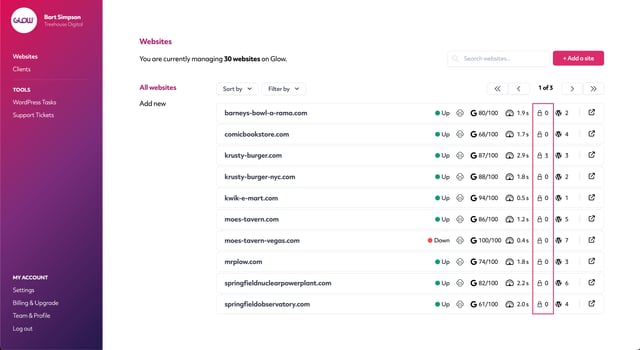
Click the icon or the number to be taken to the Vulnerabilities screen for that website.
Step 2
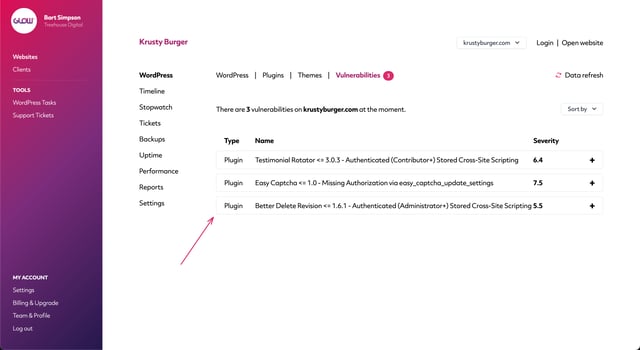
Depending on the number of vulnerabilities currently present on the website, you’ll now see 1 or more accordions in the middle of the screen, each containing the title of the respective vulnerability.
Step 3
Use the plus icon to the right side of an accordion to expand it and view more information about the vulnerability.
For each one, Glow will display the following information:
- Type – core, plugin or theme
- Name
- Severity – on a scale of 1-10, with 10 being most severe
- Published – date the vulnerability was made public
- Description
- Affected versions – which versions are vulnerable
- Patched – whether a fix is available
- Patched versions – which versions are fixed
- Suggested fix – how to fix it
Most vulnerabilities have a patch and are fixed by simply updating to the latest version of WordPress core, or the plugin or theme in question.

