From time to time you may want to simply ignore a security vulnerability being reported by Glow, where a patch is not available and it’s a long time since the vulnerability was first published.
To do this, follow the steps below:
Note: Permanently ignoring a vulnerability means it will never show in your Glow account again.
Step 1
Login to your account and go to Websites from the main left hand menu. Click into the website where you want to ignore the security vulnerability and go to WordPress > Vulnerabilities.
Step 2
You’ll now see the list of vulnerabilities currently present on this website.
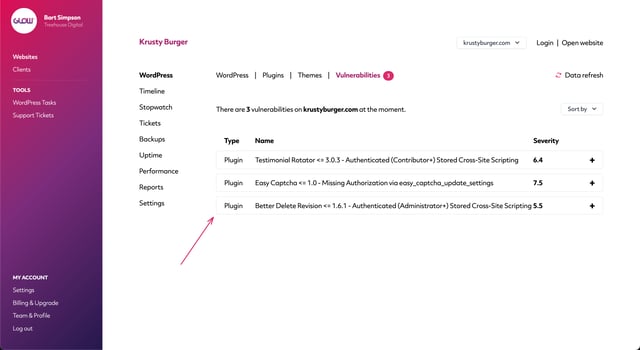
Find the one you want to ignore and click the plus icon on the right side of the accordion.
Step 3
If there is no patch available, you’ll see a link at the bottom of the accordion that says Permanently ignore.
Click this link and then from the options showing, choose whether to ignore the vulnerability for only this website or for all other websites in your account where this vulnerability is present.
When you’ve made your choice, click the Confirm link and then you’ll see a success message on screen confirming that this vulnerability has now been permanently ignored.

