There are 3 ways that you can white label a Reseller Agency’s dashboard:
- Branding
- DNS & Email
- Glow plugin
Let’s look at each one below:
Start by logging into the dashboard for one of your Reseller Agencies. You do this by going to Resellers from the main left hand menu of your account.
The All Resellers screen will load by default. Click the login link icon on the right side of the Reseller Agency whose dashboard you want to login to.
Branding
In the Reseller Agency’s dashboard go to Settings from the main left hand menu. The White Label screen will load by default, on the Branding tab.
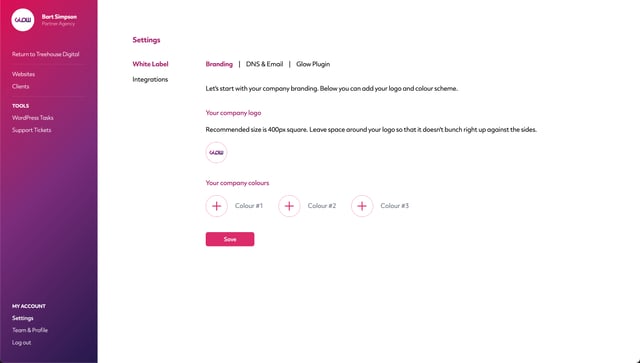
Here you’ll be able to upload your Reseller Agency’s logo and use the colour pickers below to set the colour scheme for their account.
Note: The branding settings you use here, including the logo, will be used on client reports for this Reseller Agency.
DNS & Email
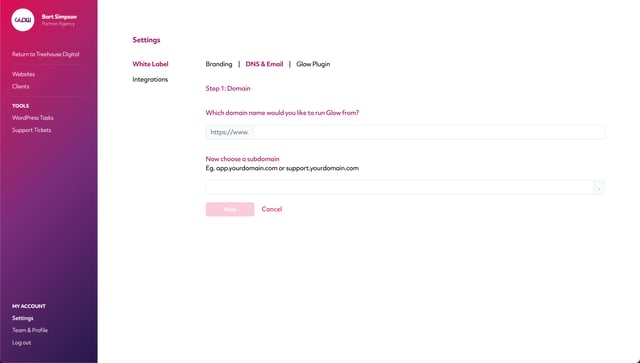
Click on the DNS & Email tab to customise the following things:
- Domain name – Allows your Reseller Agency’s dashboard to look like it’s loading on their domain. Eg. instead of it loading at my.getglow.io, it could load at support.reselleragency.com.
- Email – Set an email address that will be used as the ‘from’ address in all communications to your Reseller Agency’s clients. You can then also use this email address for Reseller Agency clients to raise support tickets to.
Glow plugin
Finally, click on the Glow plugin tab.
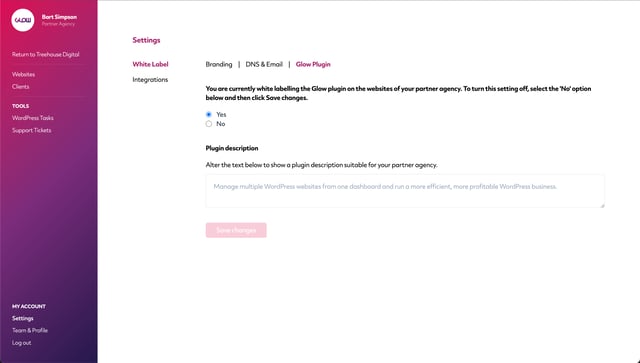
By default, our plugin will be white labelled to display the name of your Reseller Agency. If you want to turn this setting off and show Glow as the plugin name, simply switch the setting here to No.
On this screen, you can also set a custom plugin description, suitable for your Reseller Agency.

