Step 1
Login to your Glow account and click on Websites from the main left hand menu.
Step 2
Select the website that you want to run updates for.
You’ll now be shown the Website Area which will load on the WordPress tab by default.
Step 3
You’ll see 3 tabs along the top of the WordPress screen:
- WordPress – where you can manage core updates
- Plugins – where you can manage and update plugins
- Themes – where you can update themes
Step 4
If an update is available for core, or any of the plugins or themes, you will see the version numbers represented on the right side of the screen.
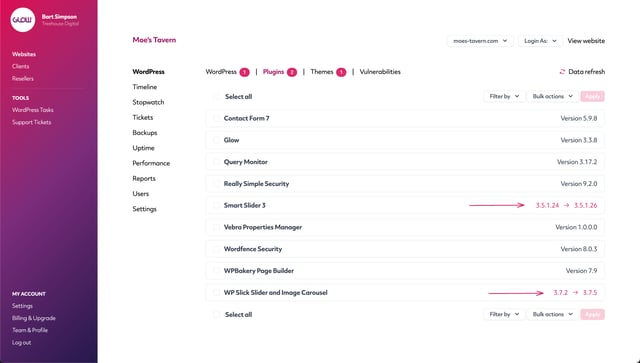
To begin the Update process, click on the checkbox to the left of the core version / name of the plugin / name of the theme.
Note: For plugins and themes you can run multiple updates at the same time.
Step 5
Once you’ve selected your updates, click on the Bulk actions dropdown menu in the top right corner and select Update.
Then click the Apply button to the right of the Bulk actions dropdown menu.
Step 6
You will then see that each update shows the Updating status on the right side. You’ll see a confirmation notice across the top of the screen once the updates are complete.
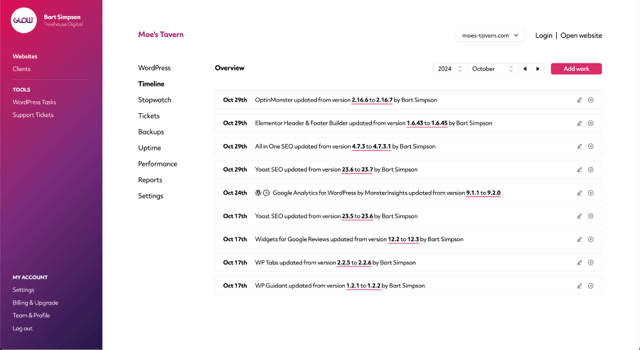
Each update will also be posted to Timeline: