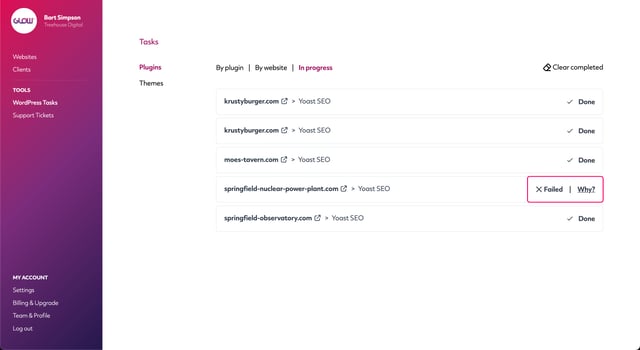
Occasionally Glow will give you a ‘Failed’ notice against core, plugin and theme updates.
There’s various reasons why an update might fail and in this article, we’ll look at the most common ones and what you can do to resolve them.
First, run them again
Before we dive in to the reasons why updates might be failing, the first thing you can do is to simply run the update again.
Start by clicking the 'x' next to the Failed notice, then refreshing your browser on the WordPress Tasks screen. Now run the updates again. Chances are, something went wrong during the update process that was a one-time thing and by running the update again, it might work this time around.
If you’ve tried that and are still having problems, move on to the potential reasons below:
Potential reasons for failed updates
Our plugin has been deactivated
If our plugin is not active on your client’s site, updates will never work.
Double check that it’s still active and if it’s not, active it and then run the updates again.
Glow is blocked
It’s possible that Glow’s access to your client’s website is blocked, either by your hosting company or a 3rd party security plugin.
An easy way to test this is to click the login link in Glow and see if the WordPress dashboard on your client’s website opens. If it doesn’t, that’s a good indication that either:
- a) Glow is blocked or:
- b) The Glow plugin has been deactivated or deleted
Both of those situations would result in failed updates.
How to fix it
First, check if our plugin has been deactivated or deleted. If it’s been deactivated, you’ll need to reactivate it and then reconnect the website.
If it’s been deleted, go to the Website Area > WordPress in your dashboard and follow the steps to download the latest version of the plugin and reconnect the website.
If the plugin is active and running the latest version, try whitelisting our IP address: 18.171.1.94 and then running the updates again.
The plugin is already at the latest version
This typically only occurs with premium plugins.

Occasionally when you’re logged into the WordPress dashboard, on the Plugins screen, WordPress will display that an update is required for a particular plugin. However, when you then refresh the Plugins screen, that same plugin will now not be showing an available update.
Essentially, WordPress is intermittently reporting that an update is available. One minute it’s reporting that an update is available, the next minute it isn’t.
So, let’s say Glow has retrieved the data while WordPress is displaying that the update is available. Glow will now tell you that that update is available. Makes sense so far.
However, during the time between Glow retrieving that data (which it does automatically on an hourly basis) and you coming to run the update, WordPress is now no longer reporting that the update is available. So you click Update in Glow but of course, technically, there is now nothing to update in WordPress. At this point the update in Glow will fail and WordPress will give Glow this reason: this plugin is already at the latest version.
How to fix it
The only solution to this situation is to just keep checking WordPress. If you see the update as being available, just run the update there.
This is a tricky one, however it’s quite a good example of how premium plugins can mis-report things on occasion.
WP Engine is blocking updates from being started
With some websites hosted on WP Engine, Glow is blocked from being able to successfully perform updates. However, Glow doesn’t ‘know’ that it’s blocked until you click the Update button in Glow.
This happens when WP Engine’s update popup is in place.
Here’s what it looks like:
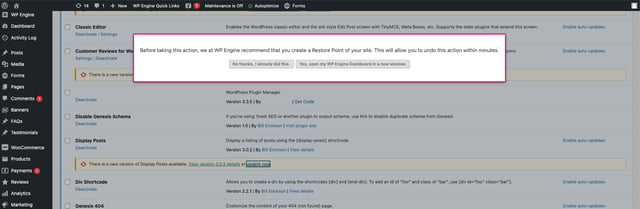
This appears when you click the Update now link in WordPress (which is essentially what Glow does, remotely). So when you tell Glow to start the update process and it hits this popup from WP Engine, it cannot successfully run the update.
You’ll then get a failed notice in Glow.
How to fix it
There’s 2 ways that you could fix this:
- Remove the popup – change your settings in WP Engine so that this popup does not appear – then Glow will be able to run updates as normal.
- Run the updates in WordPress – if you can’t remove the popup, your only option will be to run the updates in WordPress. Thankfully, Glow still records all updates, even if they’re performed in WordPress, so you won’t miss anything in terms of reporting.
Elementor is causing failed notices to appear on other plugins
Is Elementor installed on your client’s website? If so, this could be the reason behind the failed updates you’re seeing in Glow.
The issue usually occurs when there is an update available for Elementor and before updating it, you attempt updates of other plugins first.
When you do that, WordPress gives you (and therefore gives Glow) a failed notice that relates to Elementor, for those other plugin updates. See the example with in the screenshot below with the plugin HubSpot All-In-One Marketing:
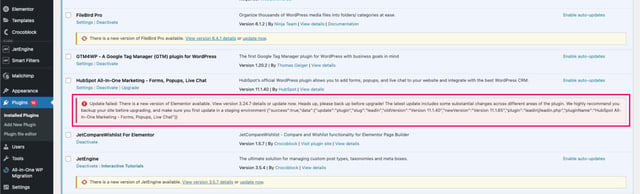
To make things a little more complicated, these ‘failed’ notices in WordPress are actually incorrect. The updates of these other plugins actually do complete successfully.
But because WordPress shows a failed notice, then you see the failed status in Glow too.
How to fix it
The only fix we’ve seen work for this situation is that when an update is available for Elementor and Elementor Pro, as well as other plugins, always start by:
- Updating Elementor on its own, then:
- Updating Elementor Pro on its own, then:
- Proceed with running the updates for the remaining plugins (which you can do in bulk, in Glow)
PHP is too far out date
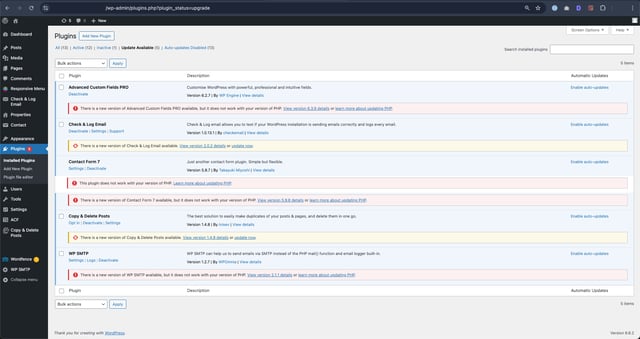
If the PHP version being run on your client’s website is too far out of date, Glow will not be able to update certain plugins if the version of those plugins that you’re updating to require PHP to be at a certain minimum version.
In this scenario, Glow will always show you the Failed status.
How to fix it
This one is quite simple: upgrade the PHP version on your client’s website to at least the minimum version required by the plugins you’re trying to update.
Next steps
If either: a) none of the above situations apply to you or b) you’ve attempted one of the fixes suggested above and you’re still having difficulty, contact our support team and we’ll look into what’s happening.

