All notifications for support tickets are sent by email. There are a few ways for you to customise who gets notified about new tickets and ticket replies.
See below:
The first time your client raises a ticket from email
When your client raises a ticket from email for the first time, ie. they email your support mailbox (which forwards the email to your Glow account as a ticket), the person who created your Glow account will be the person who is both assigned to that ticket and notified about it by email.
That person can then decide to either handle the ticket, or assign it to a teammate.
Decide who gets notified
There are a couple of different ways you can decide which person in your team receives notifications about new tickets and ticket replies.
Assign a teammate to a client
The first way is to assign a teammate as the default support ticket manager for a particular client. You do this by going to Clients > Client > Settings > Tickets and in the dropdown menu showing there, simply choose the person in your team who should be notified whenever this client raises a new support ticket.
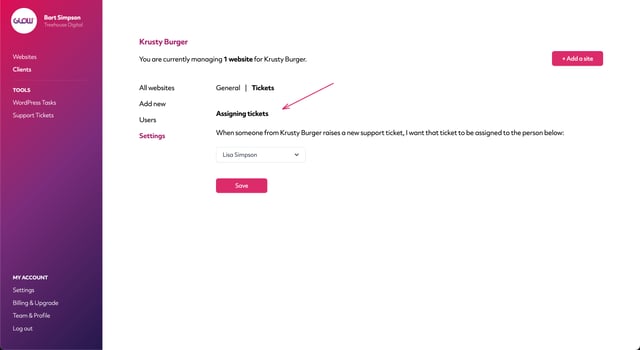
When this client raises a ticket, that person will also be assigned to the ticket automatically.
Assign tickets to teammates
Assigning tickets to teammates happens during the course of handling a ticket. So this section is related to after a ticket has been raised and a teammate notified about that.
If when reviewing a ticket, a teammate decides that a different teammate is better placed to handle it, they can assign the ticket to them.
Open the ticket by going to the Support Tickets screen in the main left hand menu and clicking into the ticket. In the top right corner you’ll see the name of your teammate currently assigned to the ticket. Click the Change link below their name and select the teammate from the dropdown menu that you want to assign the ticket to.
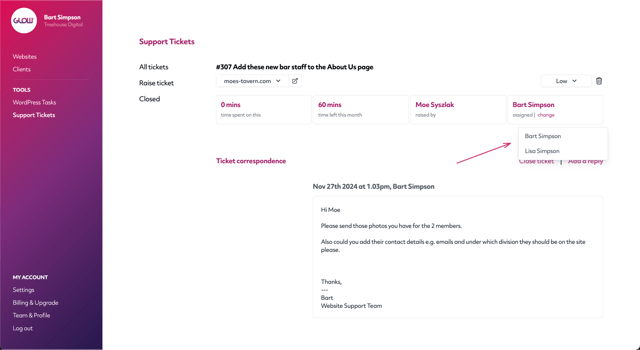
That person will now be assigned to the ticket and will receive an email notification letting them know you’ve assigned it to them.

