There are 6 different email notifications that can be sent to your client, based on the following trigger actions in the ticket system:
- When your client raises a ticket
- When your client replies to a ticket
- When you reply to a ticket (that was raised from email)
- When you reply to a ticket (that was raised from the dashboard)
- When you close a ticket
- When you raise a ticket to your client
Log in to your account and head over to Settings > Features and then select Support tickets from the dropdown menu.
You’ll now see the above 6 emails, each contained within their own accordion.
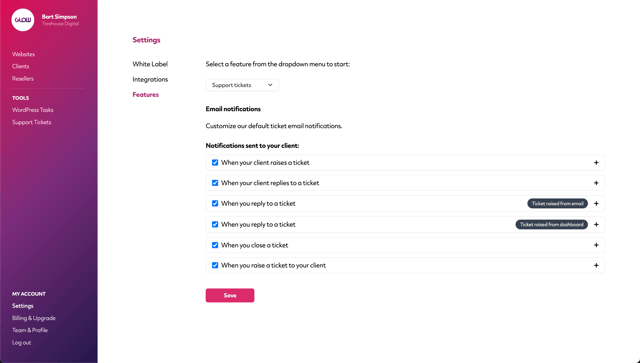
Turning emails on/off
Firstly, you’ll see a checkbox to the left side of the accordion for each email. By default, this checkbox will be selected for all 6 emails. This means all emails are currently turned on and will be sent when the triggers are hit.
To turn an email off (ie. so your client no longer receives it), simply deselect the checkbox and click the Save button at the bottom.
Customising emails
You’re able to customise the content of all 6 emails. To do this, simply expand the accordion of the email you want to customise and you’ll see a few things:
- Subject – This is the subject of the email that your client will receive
- Email body text – This is the body of the email that your client will receive. You can add rich text, links and images/screenshots here
- Show placeholders – Click this to reveal various placeholders (dynamic content) that you can add to the Subject and Email body text
Note: You may need to play around with line breaks and spacing in the Email body text to get it looking exactly how you want it to in the email on the frontend.
Your company logo
You may wish to display your company logo in emails to clients. By default, you’ll see the [your company logo] placeholder at the top of the Email body text section in all emails.
Be aware that this pulls directly from the logo you upload in Settings > White Label > Branding. If you want to change it, simply remove the [your company logo] placeholder from the Email body text section and use the attachment tool to drop in a different logo image file.

