Glow gives you the ability to quickly login to a client’s website without needing the username and password information.
However, depending on your role type and the permissions that have been set for you, you may or may not be able to use this feature for a particular website.
Role types
There are 3 role types in Glow:
- Owner
- Account Manager
- Developer
In relation to logging in to websites, Owners are able to login to any website as any WordPress Administrator user.
For Account Managers and Developers, the login feature will be locked (ie. they will not be able to login to websites from Glow) until a teammate with the Owner role unlocks it for them for a particular website.
How an Owner unlocks the login feature for a teammate
If you have the Owner role, follow the steps below to unlock the login feature for a teammate with the Account Manager or Developer role:
Step 1
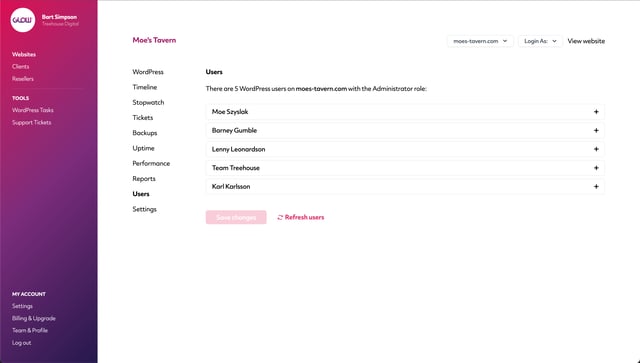
Go to Websites from the main left hand menu and click into a Website. From the inner menu, click on Users.
You’ll now see a list of all the WordPress users on this website that have the Administrator role. Each user sits within its own accordion.
Step 2
Use the plus icon to the right side of the accordion for one of the users to expand it.
You’ll now see a list of teammates in your account. Select the teammate you’d like to give the ability to login to this website from Glow as this WordPress user.
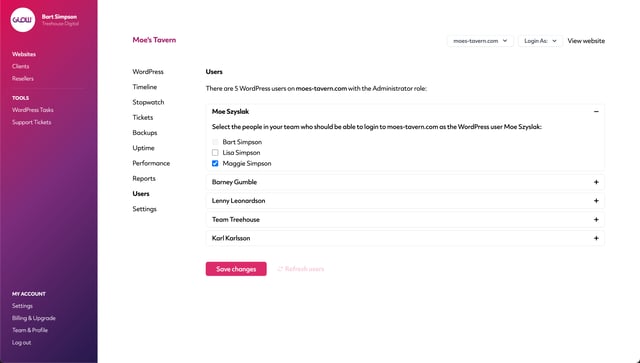
Note: Teammates with the Owner role will be selected by default as they’re able to login to any website as any WordPress user.
You can repeat this process for each of the WordPress Administrator users for this website.
When you’ve finished, click the Save button at the bottom of the screen.
Step 3
Now, when your teammate logs into their account and goes to this website, they’ll see the Login as link in the top right corner is now unlocked. When they click it, they’ll see the names of the WordPress Administrator users that you’ve given them permission to login as.

