Depending on the role type you have, you may or may not be able to assign teammates to specific websites.
- Owner role – Full permissions to assign websites to teammates
- Account manager role – You can assign teammates with the Developer role to specific websites
- Developer role – You do not have permission to assign teammates to websites
So, if you have the Owner or Account Manager role, follow the steps below:
When adding a new teammate
If you’re in the process of adding a new teammate to your account, you’ll see the on the success screen after you’ve added them, that you’re directed to the Permissions tab of their Profile.
You’ll see this question on screen:
Should [teammate name] see all the websites in your account?
The default answer will be No.
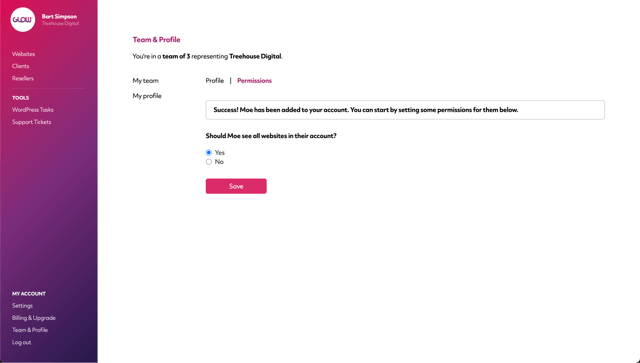
If you’d like them to see all websites, simply switch this to Yes and click Save. Then, when that person logs in to their account, they’ll see and will be able to manage/maintain all the websites in your account.
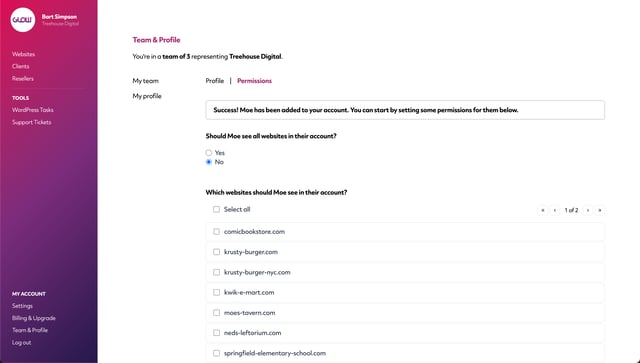
If you don’t want them to see all websites, leave the option set to No and then from the list of websites in your account below, select the ones you do want them to see.
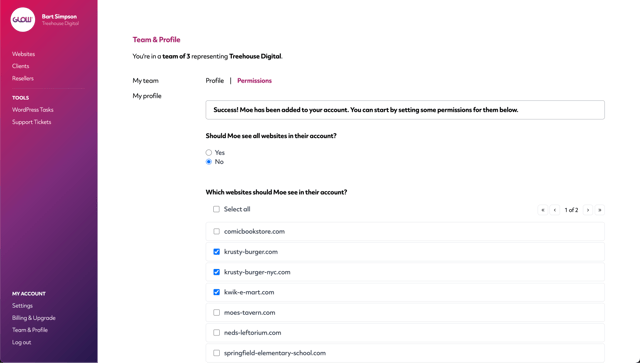
When you’re finished, click Save and then, when that person logs in to their account, they’ll see and will be able to manage/maintain the websites you selected.
Editing permissions for an existing teammate
You might also need to change the permissions for a teammate that’s already in your account.
To do this, go to Team & Profile in the main left hand menu, click into the name of your teammate whose permissions you want to change and then click on the Permissions tab across the top.
Here, follow the same steps as in the section above.
Select Yes if you want them to see all websites or select No and alter which websites you want them to be able to access.
Make sure you click Save at the bottom of the screen when you’re done.

