Note: Stopwatch allows you to track the time you spend making changes to your client’s website. You’re also able to set an allotted amount of time that clients can use each month, to request changes/fixes on their website.
Step 1
Login to your Glow account and go to Websites > Website > Stopwatch.
Step 2
On the Stopwatch screen, click on the Settings tab. Here, you’re able to set the number of hours that you allow your client to use for custom development time each month on this website.
Let’s say this is 2 hours, you would apply the setting '2'.
Note: You do not have to set an allotted amount of time if you don’t work with clients in this way. Instead, you can simply set the above setting to '0' and Glow will remove any reference of allotted time from both the Stopwatch screen and client reports.
Recording time
There are two ways that you can record time against a website:
1. From a support ticket
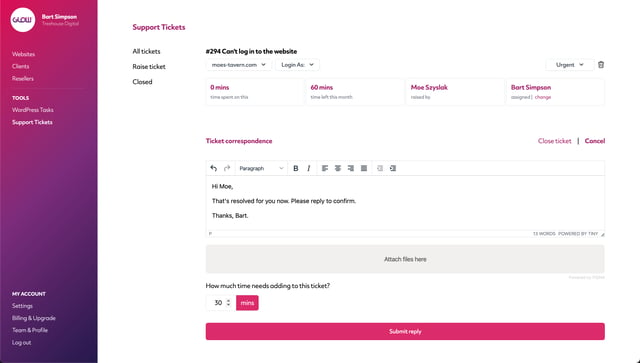
Once you’ve closed a support ticket, you’ll be asked how long it took you to complete the work / resolve the client’s issue.
After confirming this and closing the ticket, that time will be added to Stopwatch for that website.
2. By recording ad-hoc work
To record ad-hoc work, go to Timeline:
Websites > Website > Timeline > and click the Add work button in the top right corner.
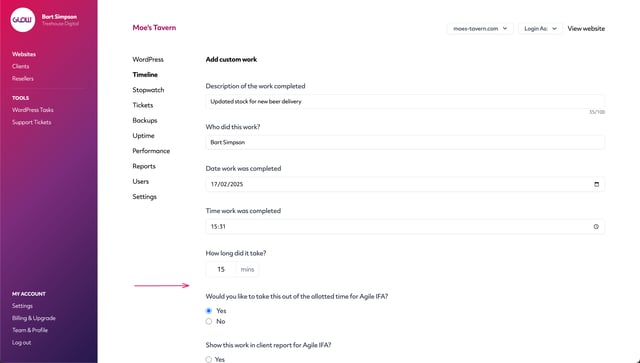
Complete the form as necessary, indicating how long it took to complete the work. At the end, decide if you want to deduct this time from the allotted time in Stopwatch. If you’re not using the allotted time feature, you can ignore this question.

