Glow’s WordPress Multisites feature allows you to manage an entire Multisite Network from the same place as all your regular WordPress sites.
Connecting a Multisite Network
You connect a Multisite Network to your Glow account in much the same way you connect a regular site.
Head over to Websites > Add new and in Step 2 when Glow asks you for the website URL, make sure you add the ‘main’ / ‘parent’ site in the network, not one of the child sites.
In Step 3, download our plugin and install and activate it on the main site in the network.
When you return to Glow the site will have connected and all the child sites in the network will have been automatically imported too.
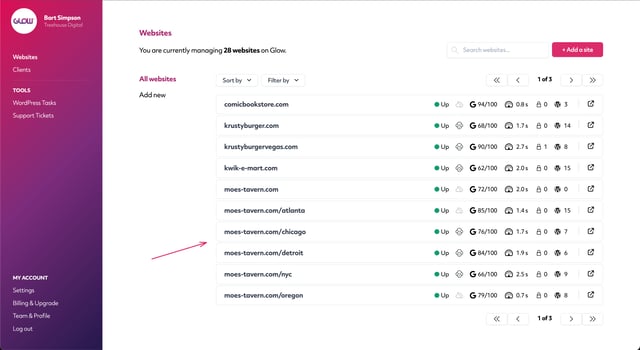
Note: Multisite networks count towards the website limit on your plan. Eg. If you add a network of 10 sites, you are adding 10 new websites to your plan.
Core, plugin & theme updates
You can not perform core, plugin and theme updates for Multisites from your Glow account.
So, just continue to update them from within the WordPress dashboard and thanks to Glow’s Timeline feature, all updates will get recorded against the respective site in the network.
Note: Eg. Let’s say Yoast SEO is installed on 5 out of 10 sites in the network. You update the plugin. Timeline in Glow will then show confirmation that this update has been performed on those 5 sites and not on the other 5 (where Yoast SEO is not installed/active).
Backups for Multisites
For backups, Glow integrates with UpdraftPlus. You don’t need to pay for UpdraftPlus for the majority of their functionality. However, if you’d like the ability to backup your Multisite network, you’ll need their premium subscription.
Note: We will be able to save you money a premium subscription with Updraft, so ask our support team before purchasing.
Once you’ve got this in place, Glow will record all backups and they will sync with client reports just as they do with regular sites.

